How does an electrical contractor share plans with fitters, workshop and design office without emailing PDFs back and forth?
Organisation, project roles and free read-only access: how to give fitters, workshop, partners and clients the current single-line diagram, situation plan and distribution board in PlanElec Pro, who needs an editing seat and what the Belgian AREI/RGIE says about plan availability.
 AuthorStephan Behm
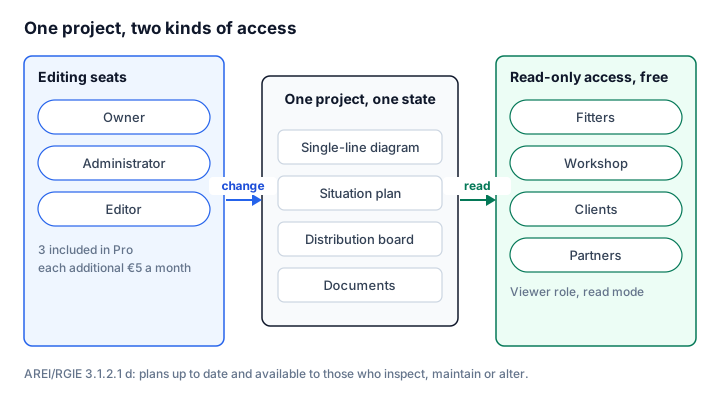
In PlanElec Pro you create projects in your company's organisation and invite colleagues, fitters and partners by email with a role: administrators and editors change the project, viewers see the single-line diagram, situation plan, distribution board and documents in read mode. Read-only access is free and unlimited; Pro includes three editing seats. Everyone works on the current state instead of last week's PDF, which is exactly what the AREI/RGIE, the Belgian general regulations on electrical installations, asks for: up-to-date plans, available to everyone who inspects, maintains or alters the installation (sub-section 3.1.2.1 d).

Status 7 November 2026. Written by the PlanElec team, which builds Sketch and Pro.
Why is emailing PDFs not enough?
A PDF is a snapshot. As soon as a circuit moves in the office, the fitter on site has an outdated plan, and nobody can tell which printout is right. The AREI/RGIE requires diagrams, plans and documents to carry an unambiguous number, version and version date (section 3.1.2), and to be kept up to date and available on site to everyone authorised to supervise, inspect, maintain, repair or alter the installation (sub-section 3.1.2.1 d). In non-domestic installations, the owner, manager or operator provides up-to-date diagrams and plans to the staff carrying out work (section 9.1.1 no. 4 b).
A shared project does not solve distribution with more email, but with one current state. The AREI/RGIE does not say in what form the plans must be available on site; a printed set at the distribution board remains readable without a network.
Which roles are there in PlanElec Pro?
| Role | Can | Editing seat? |
|---|---|---|
| Owner | Everything, including managing members; owns the project | yes |
| Administrator | Edit everything and manage members | yes |
| Editor | Edit the project, export PDFs; no member management | yes |
| Viewer | Studio in read mode: read situation plan, single-line diagram, board and documents; no changes, no exports; download archived release copies | no, read-only access is free |
The organisation adds the roles Owner, Administrator and Member. Owners and administrators manage members, invitations and the company profile with name, contact details, VAT and enterprise number, logo and colours; these details appear on every PDF of that company's projects. Anyone removed from the organisation loses all access to its projects; the company projects are retained.
What does a fitter see in read mode?
A Viewer in the project sees the studio without tools, palettes and editing panels. Read only shows at the top. The situation plan, single-line diagram, board and documents are there to read; when the fitter taps a device, PlanElec shows Circuit, Protective device, Cable and Distribution board. Touch targets on a tablet are at least 44 pixels. Read mode is the interface; whether someone may write is still checked by the server.
| Who | Typical role | What for |
|---|---|---|
| Fitter on site | Viewer | Which box belongs to which circuit, where each cable runs |
| Workshop, board building | Viewer | Reading the board layout |
| Designer or project manager in the office | Editor | Changing the design, exporting documents |
| Partner business, for example a solar installer | Editor or viewer | Planning their part or only reading |
| Client, developer, architect | Viewer | Looking at the current state without changing anything |
Changes by editors appear for everyone who has the project open: live collaboration synchronises changes, shows who is present and catches up on confirmed changes.
How do I invite someone into a project?
- Create the organisation. In the project list, Manage organizations leads to the overview; choose Create organization and fill in the company profile.
- Bring colleagues into the organisation. On the organisation's page, Invite by email with address and role. External people are not searched or suggested; you enter the full address.
- Move the project into the organisation. A personal project is moved with Transfer project to organization. The organisation then becomes the owner; existing project permissions and invitations are removed and must be granted again.
- Assign the project role. In the studio, Share & team… in the project menu opens team management; from the project list, Manage members in the project card menu leads there too. Under Invite by email you enter address and role; Viewer is the default.
- Accept the invitation. The invited person opens the link in the email, signs in or creates an account and chooses Accept invitation. Acceptance requires a confirmed email address that matches the invited one. Open invitations can be sent again or revoked.
Who needs an editing seat, and what does it cost?
| Offer | Price |
|---|---|
| Pro monthly | € 29 with three editing seats |
| Pro yearly | € 290 with three editing seats (ten monthly instalments) |
| Each additional editing seat | € 12 a month or € 120 a year |
| Read-only access | free and unlimited |
| Try Pro | €0 for one month for one person, immediately with a VAT number, no payment details |
A business with one designer, one project manager and five fitters who only read therefore manages with the base price: three seats for those who change things, five free read-only accesses. The price stays the same as long as the subscription runs without interruption. Details and Site pass per property are on the pricing page.
How do I keep versions and handovers traceable?
- Dossier and archive. Pro exports the single-line diagram, situation plan, board PDF, self-check report and a configurable installation dossier. Versioned archiving with a QR code confirms the origin and integrity of an archived PDF; it is not an AREI/RGIE acceptance. How it works is explained in the help guide Archive and verify documents.
- On the way to your documents. The step list in the export shows editors what is still open before the dossier; it is a completeness aid, not a statement about the inspection. More in Export documents.
- Company profile. Name, contact details, logo and colours from the organisation's company profile appear on every PDF of its projects. All of a company's PDFs therefore carry the same sender, whoever exports them.
How does the current state reach the distribution board?
With Create release copy in the Export area, Pro stores a PDF unchanged in the project archive: with its own document ID, a version number that increases per document type, a QR code on every page and a SHA-256 hash. Each version has a Sticker PDF, a 40 × 40 mm label with QR code, version number and short ID that you can stick inside the board. Whoever scans the code sees on the verification page whether this version is current or has been replaced by a newer one. All project members, viewers included, can download archived PDFs and stickers.
The increasing version number helps keep versions unambiguous as section 3.1.2 requires. The QR code confirms the origin and integrity of the file, not conformity. Anyone with the code can open the PDF, so treat stickers like the document itself.
What happens when someone leaves the company or a partner is done?
If you remove someone from the organisation, all of their access to its projects ends; the company projects are retained. Someone who only worked on one project is removed there via Share & team…; an invitation that is still open is revoked. If the person leaving owns the organisation, they first transfer ownership to another member. That way the knowledge about the installations stays in the company, not in a personal mailbox.
Does this work on a tablet and phone on site?
Yes, in the browser. Read mode is designed for the tablet, with touch targets of at least 44 pixels. Without a network, an opened project is readable only as far as it was prepared for local work beforehand; offline work is a pilot. For sites without reception, a printout of the current release copy with its sticker therefore belongs in the board as well.
Is PlanElec Sketch enough for a team?
No. Sketch is the tool for sole traders: free, in the browser, with an account on all your devices, but without team features. A drawing already made in Sketch is taken into a Pro project with Take it to Pro and shared there; a Pro project does not go back to Sketch. Pro applies in Sketch and in Pro.
| Your situation | Tool |
|---|---|
| Working alone, single-line diagram and situation plan as PDF | Sketch, free |
| Designer in the office, fitters on site, shared state | Pro |
| Partners or clients should read, not change | Pro, read-only access free |
| Board, self-check report and dossier in a team | Pro |
The difference between the two products is also covered in Trikker, PlanElec Sketch or PlanElec Pro; what else Pro does is on the PlanElec Pro product page and in What can you do with PlanElec?.
Limits
Invitations go by email to a full address; PlanElec does not search for external people. Viewers create no exports and no release copies; that is reserved for editors, administrators and the owner. They can download archived versions. Offline work on opened projects is a pilot; the help guide Use PlanElec offline describes what is covered. Team features do not change responsibilities: the plans are drawn by the person responsible for carrying out the work (sub-section 3.1.2.1 a), and the inspection is done by the accredited inspection body.
Official source and further reading
- FPS Economy: General regulations on electrical installations (RGIE), Book 1, French version – section 3.1.2, sub-sections 3.1.2.1 a and d, section 9.1.1
- Getting started with PlanElec: from floor plan to first export
- Connect Claude or ChatGPT to PlanElec Pro via MCP
- Apartment building: how many single-line diagrams?
- Migrate a Trikker archive to PlanElec Pro
From the guide to your own electrical plan
Create a project and document circuits, cables and protective devices. Check the result against the actual installation.
Fictitious sample dossier, available without sign-up.