Automatic planning
Plan KNX: push buttons, channels and quantities
Assign two lights and two push buttons, document the power supply and bus line, and export an initial material list with an illustrated example.
 AuthorStephan Behm
With Domotica planning enabled, PlanElec documents modules, channels, control points, keys, bus lines and terminals in one project. Exports include channel and terminal plans, functions by room, logical topology, quantities and a handover dossier with the self-check report. An active automation profile and access for your account are required. This planning does not replace ETS, device programming or an official certificate of conformity.
Practical example: two lights controlled from two locations
This fictional example documents a ceiling light and a wall light in a living room, operated from two push buttons. The screenshots show the French interface. Channel assignments, the missing-power warning and quantities were checked; the images do not show a fully validated installation dossier.
- Profile and devices: select KNX in the project metadata. Place the two lights and two push buttons from the control points and sensors category on the situation plan. Give them distinct names. Add the power supply and actuator to the cabinet.
- Electrical connections: in Installation, check the circuit, the modules’ supply and their cabinet assignment. If a light is unavailable in the receiver list, check its electrical connection. A logical channel assignment does not replace the protection path.
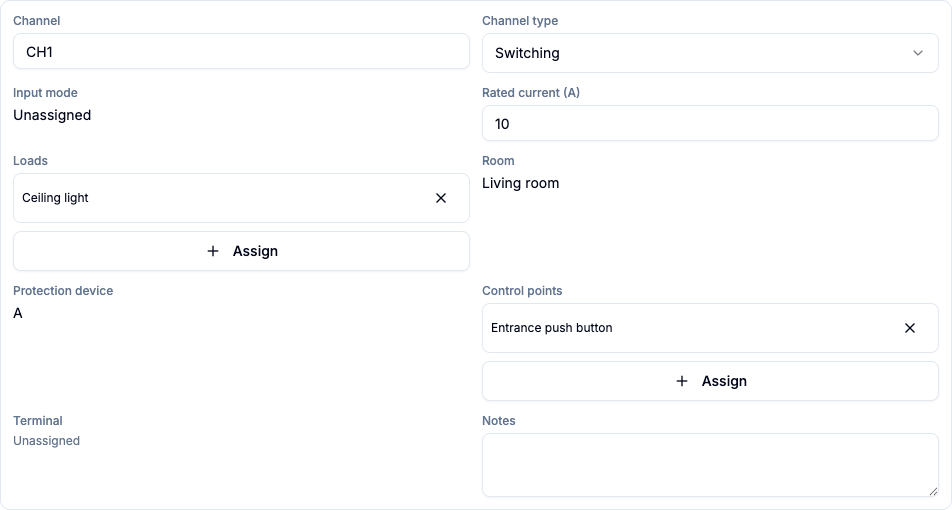
- Channel: assign both lights and both buttons to CH1. The example uses “Plafonnier salon”, “Applique salon”, “Poussoir entrée” and “Poussoir canapé”. The buttons use a Bus connection here. Add a clear note describing the intended function.

- Missing data: if the matrix reports a missing light power rating, enter the actual device specifications. Entering the fictional values of 24 W and 12 W removed that warning. This does not constitute a complete electrical compatibility check.
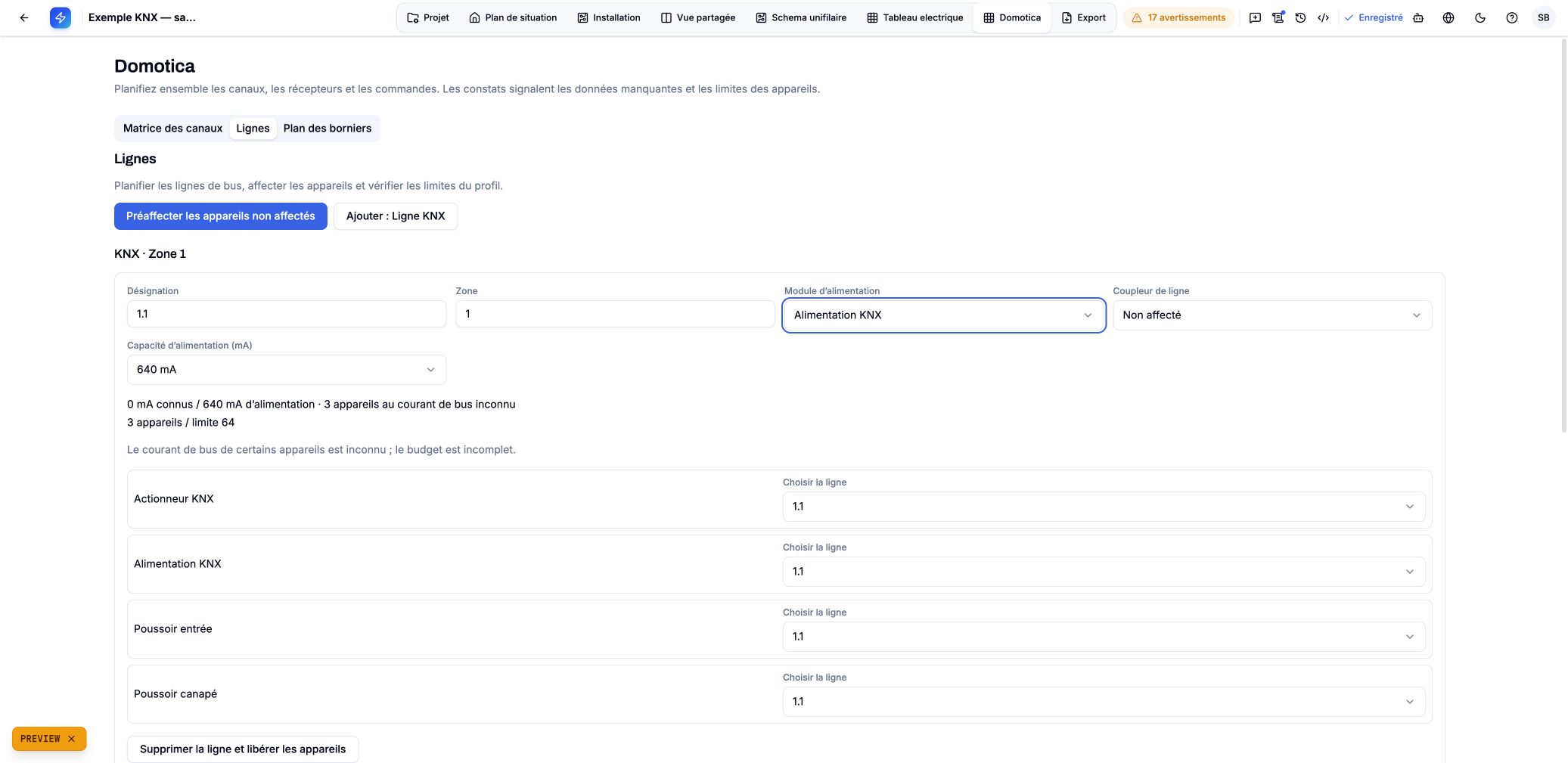
- Line and supply: assign devices under Lines and explicitly select the line’s power supply module. Then check the bus current: unknown contributions remain open data. A logical line is not a measured cable route.
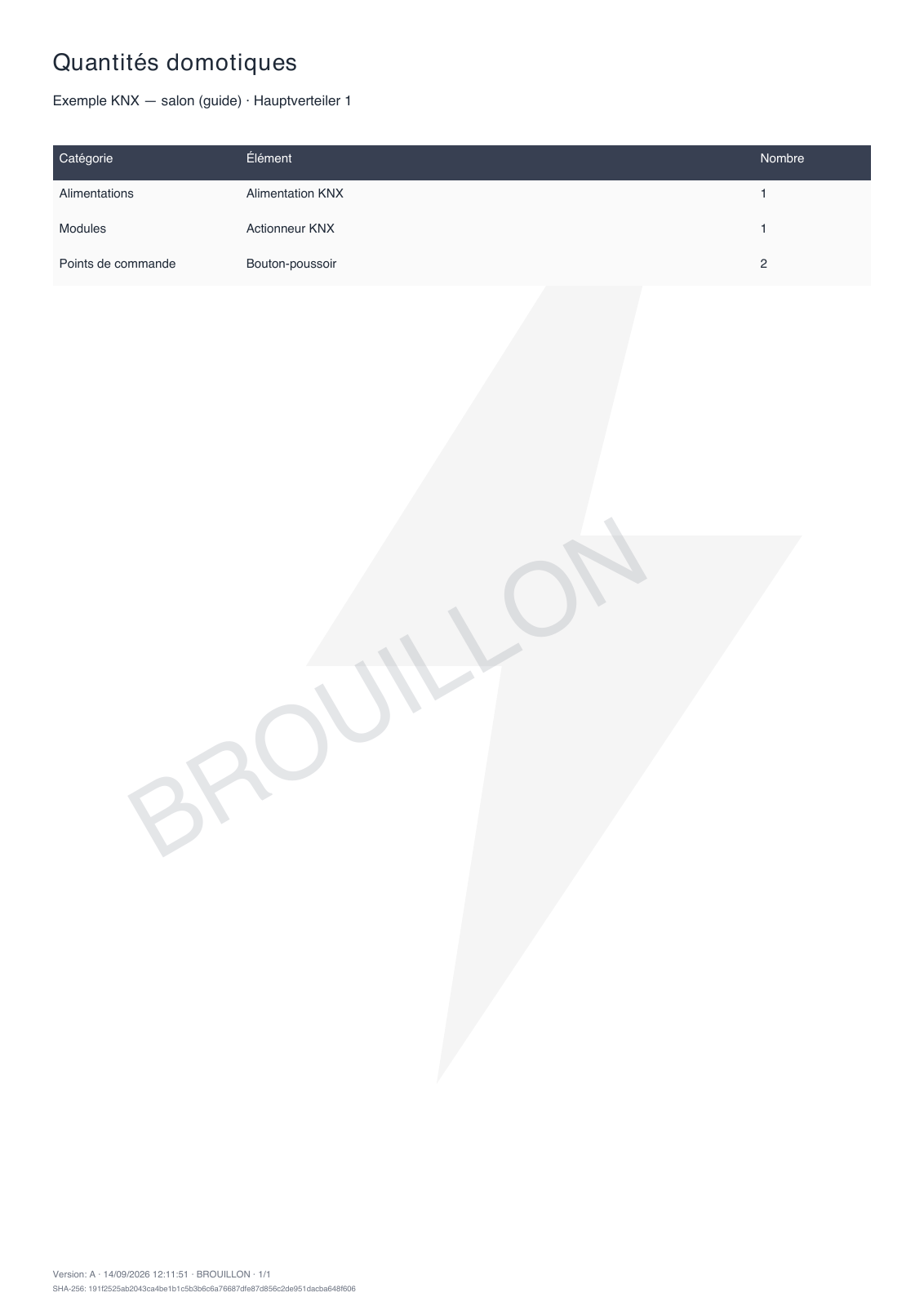
- Quantities: open Export → Domotica and download the automation quantities as a draft. Compare the result with the intended devices. The checked export contains one power supply, one actuator and two push buttons. The two lights are not included in this automation list; add them from the rest of your material overview. This example provides neither cable lengths nor manufacturer order references.
For inspection documents, also check the situation plan, device references, complete single-line diagram and outstanding export findings. The quantities shown here do not confirm those steps. The following sections explain the available documents and their status.
How do I enable Domotica planning?
Open the project metadata and select the appropriate building automation profile, such as KNX. Profiles determine which devices and connection types are offered. The Domotica area appears when access is enabled. If it is absent, this feature is unavailable for that project or account; selecting a profile does not grant access by itself.
Switching between active system profiles preserves existing assignments. Confirming No building automation, however, removes the logical Domotica planning document and its automation assignments; placed floor-plan devices remain. Review the confirmation before removing the profile and check retained devices and connections after a change. Unknown manufacturer values remain unknown and must be checked against the actual product.
How do I document push buttons and their keys?
Place devices from Control points & sensors on the floor plan. Select a device and use Configure control point. Choose the actual Connection and check the Voltage class. The voltage class is a planning input, not electrical evidence.
Use Key / input assignments to associate documented keys with channels. One control point can operate several channels, and several control points can share a channel. A channel assignment without a key index remains valid but appears as Key not documented in the function list. RF/IP is shown as a wireless control connection and does not create a physical cable route.
How do I create a cabinet-door channel sheet?
Place suitable modules in the cabinet and add their channels. The channel matrix in Domotica links each channel to its loads and control points. Use understandable channel names and add notes where needed. Multiple loads and control points are retained in full; their logical association does not replace a protection path or a documented cable route.
The Channel plan uses the same data and ordering. It lists board, module, channel, load, room, protection, terminal, control point and note. Select the board in the export area and sort by module, protection device, room or terminal. The A4 landscape PDF is the cabinet-door sheet; CSV supports further editing. Blank fields indicate missing planning information, not confirmation that an item is unnecessary.
How are lines and terminals included?
Under Lines, assign modules and control points to planned bus lines and document their power supplies and, where applicable, couplers. Known bus currents and unknown contributions are shown separately. The topology diagram represents these logical relationships; its connectors are not measured bus cable routes.
In Terminal plan, select a board and maintain strips, terminal numbers, types, destinations and manual bridges. Prefilling requires an explicit action. Existing terminals remain the source for both matrix and export; PDF rows do not write numbering back into the project. This is not an individual conductor wiring diagram.

What is included in the Domotica handover dossier?
Open the export area and its Domotica section. Select board, sorting, version and status. Each document card offers a preview and PDF; channel and terminal plans also offer CSV, and topology offers SVG. Download Domotica dossier combines all six document types after a cover page.
| Document | Content and limitation |
|---|---|
| Channel plan | All channel assignments for the selected boards, A4 landscape |
| Terminal plan | Documented terminals, destinations and bridges, A4 landscape |
| Functions by room | Keys and assigned loads in plain language; planned functions, not verified programming |
| Topology diagram | Logical lines of the whole project, also as a complete SVG; large PDF diagrams use overlapping pages |
| Domotica quantities | Counts of modules, supplies, control points and existing signal cable segments; no prices or estimated metres |
| Conformity report with Domotica | Existing self-check findings and check limitations; a missing check run is explicitly identified |
Board selection limits channel, terminal and function plans. Topology, quantities and the conformity report always cover the entire project. Functions are grouped by the control point’s room; their loads may be elsewhere.
When can I select FINAL?
DRAFT remains available when planning data exists and appears as a watermark on every PDF page and in SVG. CSV starts with a status and metadata row. FINAL requires the existing export readiness conditions to be met. The interface lists open items and offers Address the next open item. Later planning changes can block final export again.
The Domotica self-check distinguishes findings, missing inputs and checks that were explicitly not performed. Unknown loads or channel ratings do not constitute a passed check. Even a final document is not an official certificate of conformity.
What do version, date and hash mean?
Version is a freely chosen document label, initially A. PDF metadata contains project, board scope, version, creation time and a SHA-256 data hash; the dossier also displays these on its cover. Version, time, status and hash appear on every PDF page. Data and language are captured at the start. Changing planning data or export options invalidates an open preview.
The hash identifies the export inputs and options. It is not a signature, a hash of the finished PDF or confirmation of archival storage. Keep the actual document issued for handover.
What remains outside this documentation?
PlanElec does not assign KNX group or physical addresses, program devices or replace ETS. Logical lines, key assignments, bus budgets and terminal plans do not prove actual programming, bus diagnostics, insulation or manufacturer compatibility. The quantities list does not order products. The self-check report states its limited scope; professional assessment of the real installation remains necessary.
Related guides
Important for electrical planning
These guides explain the software workflow. Have the design, installation and documents reviewed by a qualified electrician where needed; only an accredited inspection body performs the official inspection.
Continue reading
Getting started: from a new project to your first PDF
Create a project, choose the floor plan or the single-line diagram as your starting point, use guidance, a template or AI floor plan recognition, and produce your first draft PDF.
Using and reviewing automatic planning
Use PlanElec proposals for devices, switch chains, cable routes, circuits, phases, and the distribution board without skipping technical review.